
For gamers, keeping your Xbox in top condition is crucial to maintaining an uninterrupted gaming experience. Whether you’re a casual player or a hardcore enthusiast, knowing the basic repair checklist can save you time and frustration. In this guide, we’ll explore the essential steps for diagnosing and addressing common Xbox issues.
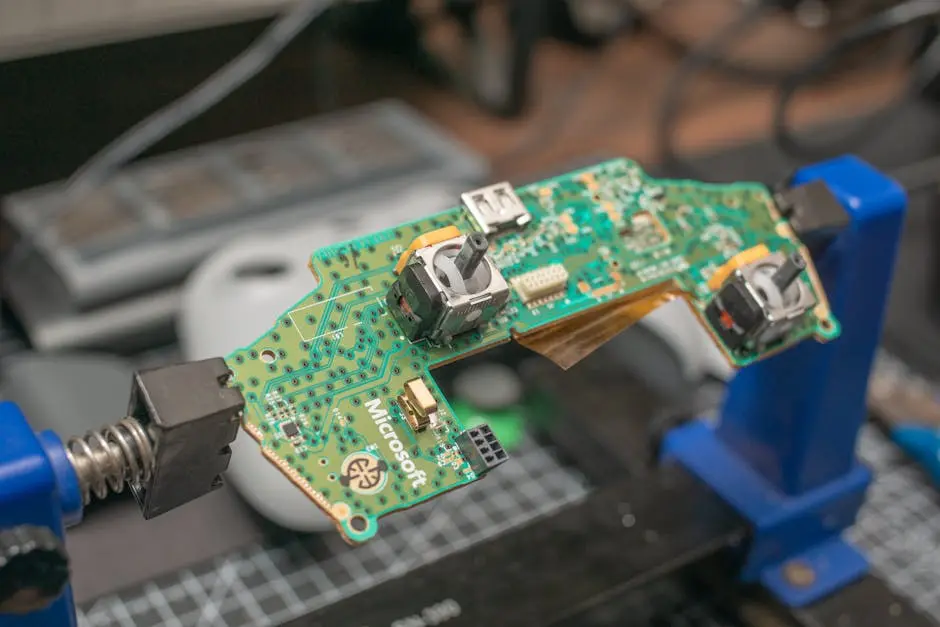
Identifying the Problem: The First Step to Repair
Before diving into repairs, it’s important to accurately identify the issue with your Xbox. Common problems include power issues, overheating, or software glitches. Start by observing the symptoms and determining whether the problem is hardware or software-related. For example, blinking lights or the lack of response from the power button may indicate a hardware problem, whereas frequent crashing or freezing could suggest software issues.
Once you’ve noted the symptoms, consult official Xbox support resources like online forums or articles to gain further insight into your issue. This step not only helps in pinpointing the exact cause but also in understanding if others have experienced similar problems. Digital Trends lists several common issues specifically related to the Xbox Series S, such as low storage space and constant crashing. Familiarizing yourself with such sources can prepare you for potential troubleshooting methods.
Essential Tools for Basic Xbox Repair
Having the right tools can make all the difference. A set of precision screwdrivers, a thermal paste, and cleaning supplies are crucial for tackling most Xbox repairs. Additionally, keep a can of compressed air handy for cleaning dust and debris from vents. Supplying yourself with these basics aids in performing both minor fixes and more intricate repairs safely.
More than just tools, having protective gear like anti-static wristbands can prevent accidental damage during repairs. Use alcohol wipes to clean delicate components like your Xbox controller buttons, which isopropyl alcohol can effectively disinfect without causing harm. Having a clean, well-lit workspace ensures you don’t misplace small parts, further streamlining your repair process.
Common Fixes: Power and Connectivity Issues
Power and connectivity issues are among the most frequent Xbox problems. Checking your power supply connections, ensuring your cables are intact, and restarting your console can often resolve these issues. If the issue persists, it might be time to look into replacing faulty hardware components such as the power supply unit. Importantly, Microsoft’s detailed guides can assist in troubleshooting power and connectivity problems specific to your Xbox model.
Additionally, many connectivity issues stem from incorrect network settings or Wi-Fi interference. Begin by testing your internet connection with another device to ensure the issue lies with the Xbox. Sometimes, simple steps like moving the Xbox closer to the router or switching to a wired connection can solve network problems. If problems persist, review your network configurations or consult Xbox support for advanced troubleshooting procedures.
Dealing with Overheating and Fan Problems
Overheating is a serious concern that can lead to hardware damage. Make sure the Xbox’s ventilation isn’t blocked and that it’s located in a cool, open space. Regularly cleaning the internal and external vents is crucial, as accumulated dust can restrict airflow and strain the cooling system. For persistent overheating issues, consider upgrading or replacing your fan to ensure optimal cooling performance.
Installing your Xbox in an entertainment center? Be cautious. Many such setups often restrict airflow, inadvertently leading to overheating. If fan problems continue after cleaning or position changes, it’s possible that the fan motor is malfunctioning or dust has settled internally. Replacing the fan or installing additional cooling solutions like external fans can vastly improve the system’s performance and lifespan.
Software Glitches: When and How to Reset
When software glitches occur, performing a simple reset can often resolve the issue. If a reset doesn’t work, consider a factory reset as a last resort after backing up your data. Ensure your console firmware is updated to avoid recurring software bugs. Many gamers underestimate the importance of regular software updates, which can significantly stabilize your system and prevent many known issues.
In cases where glitches persist post-update, look into official guides for specific model issues. For instance, the Xbox Series S may experience unique problems due to its architecture, demanding tailored troubleshooting approaches. If standard resets fail, more advanced fixes like OS reinstallation might be necessary, but these should be conducted carefully to prevent potential data loss.
Keeping Your Xbox in Optimal Condition
A well-maintained Xbox ensures countless hours of seamless gaming. By following this repair checklist, you can troubleshoot and resolve many common issues on your own, keeping your gaming session as smooth as possible. Remember, when in doubt, seeking professional assistance is always a wise choice.

